
Installing and Using the TerminusApp Chrome Extension
Building tracking links often requires you to copy a URL from one browser tab and paste it into the TerminusApp in another. This constant back-and-forth is inefficient and slows down your workflow, especially when you need to track a page you are currently viewing.
The TerminusApp Chrome Extension solves this problem by bringing the power of the URL Builder directly into your browser. You can instantly grab the URL of your current page, track any link you see, or even process all the links within an email's source code without ever leaving your tab. It's the fastest way to create consistent, accurate tracking URLs on the fly.
1. How to Install the Extension
Getting the extension set up takes less than a minute.
- Go to the Extension Page: Navigate to the official TerminusApp Extensions page.
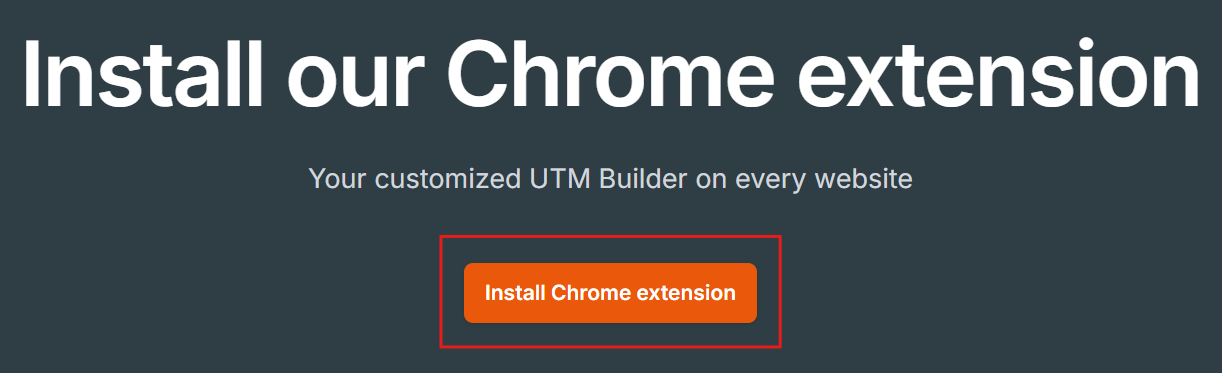
- Click to Install: Click the Install Chrome extension button. You will be redirected to the Chrome Web Store.

- Add to Chrome: On the Chrome Web Store page, click the Add to Chrome button.
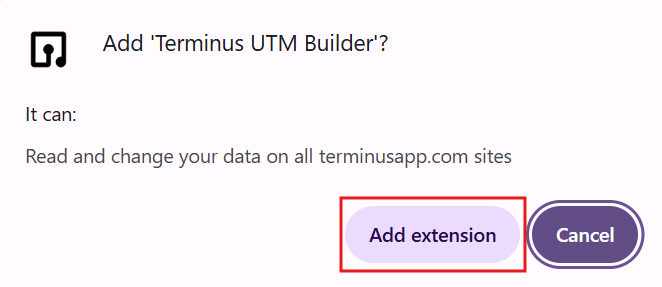
- Confirm Installation: A confirmation pop-up will appear. Click Add extension.
The extension will be installed, and the Terminus logo will appear in your browser's toolbar.
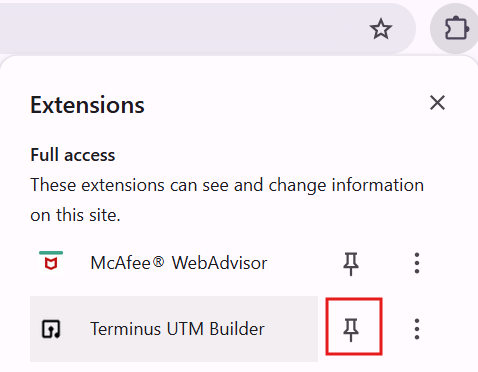
Pro-Tip: We recommend pinning the extension to your toolbar for easy, one-click access. Click the puzzle piece icon (🧩) in Chrome and then click the pin icon next to Terminus.
2. How to Use the Extension
The extension offers three powerful ways to create tracking URLs directly from your browser.
Method 1: Track the Current Page URL
This is the most common use case, perfect for when you are on a landing page, blog post, or article that you want to share.
- While on the page you want to track, simply click the Terminus logo in your browser toolbar.
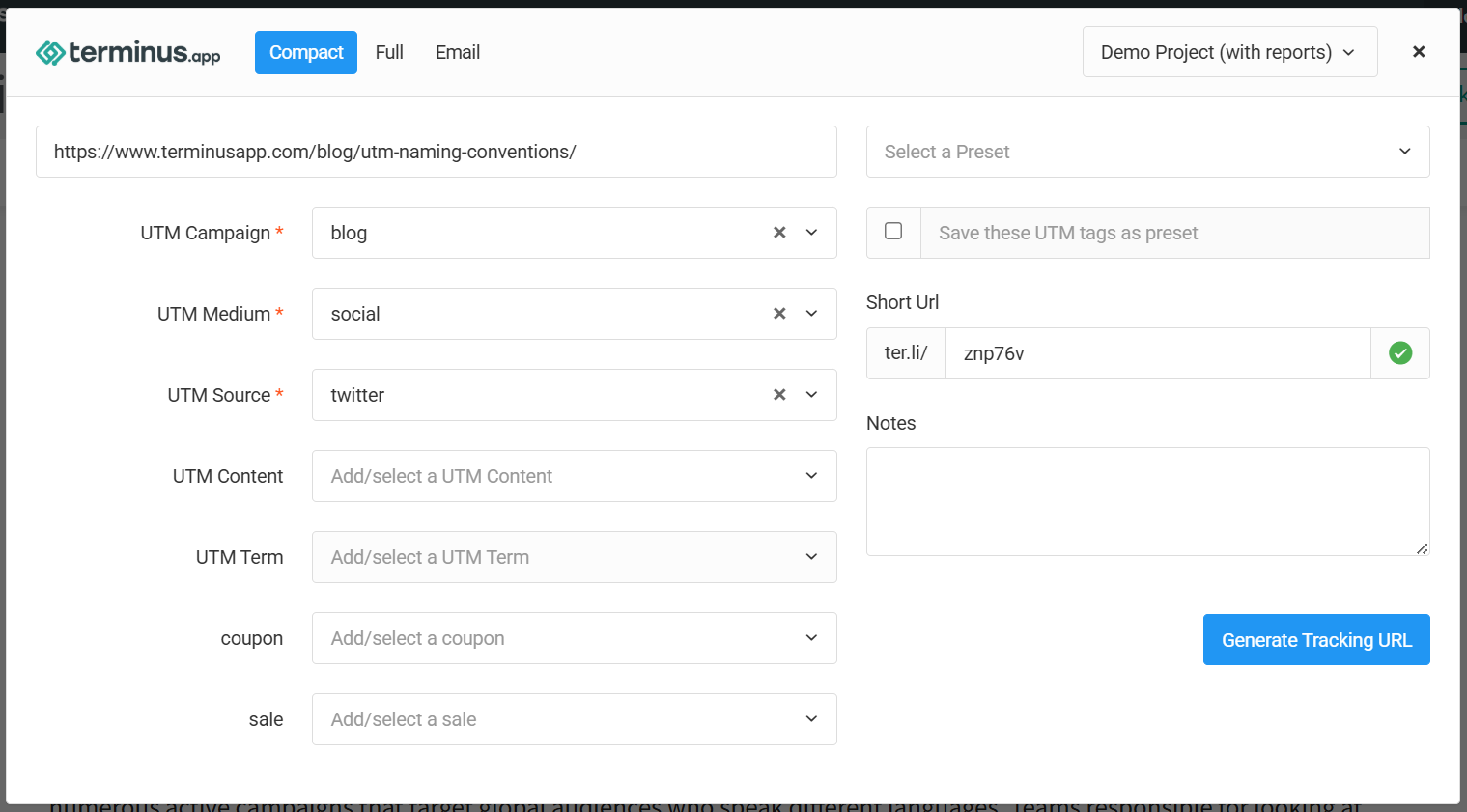
- The URL builder will open in a pop-up window, with the current page's URL automatically populated in the Destination URL field.
- Fill in your UTM parameters, labels, and other fields as you normally would.
- Click Generate Tracking URL.
Method 2: Track Any Link on a Page
This method is useful when you find a link within an article or on a website that you want to track and share.
- Locate the hyperlink on the page that you want to track.
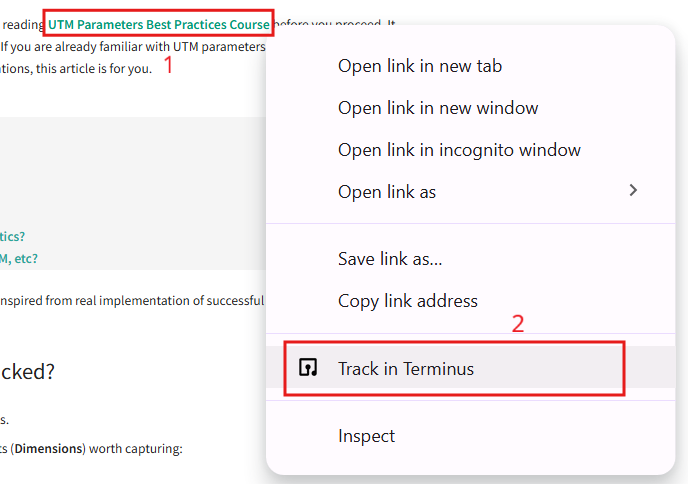
- Right-click on the link.
- From the context menu that appears, select Track in Terminus.
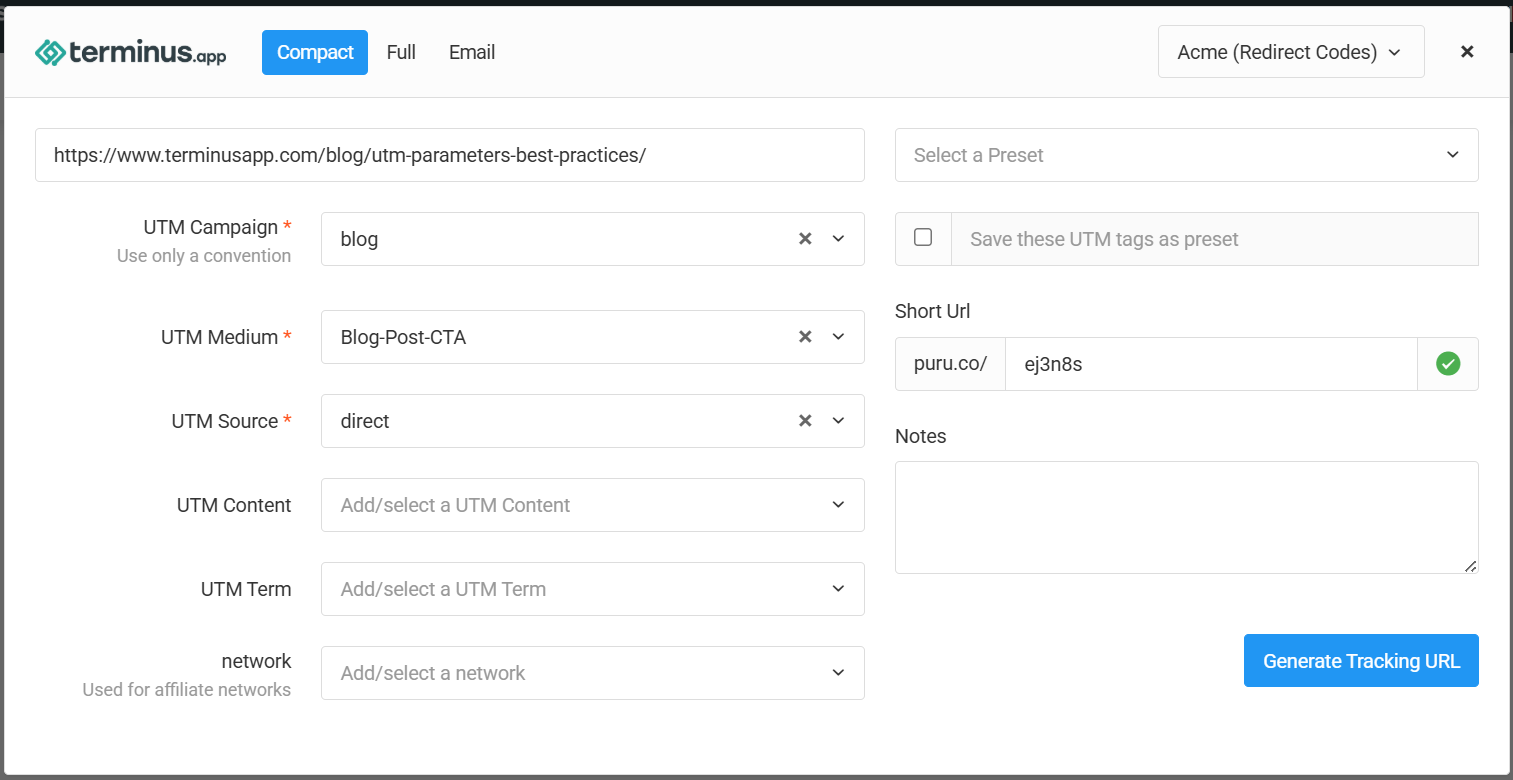
- The URL builder pop-up will open with that specific link's URL automatically populated.
- Build your tracking URL and click Generate Tracking URL.
Method 3: Track All URLs in an Email
This advanced feature is designed for email marketers who need to tag every link within an HTML email before sending it.
- Get the Email's Source Code: In your email marketing platform (e.g., Mailchimp, HubSpot), find the option to view or copy the email's HTML source code.
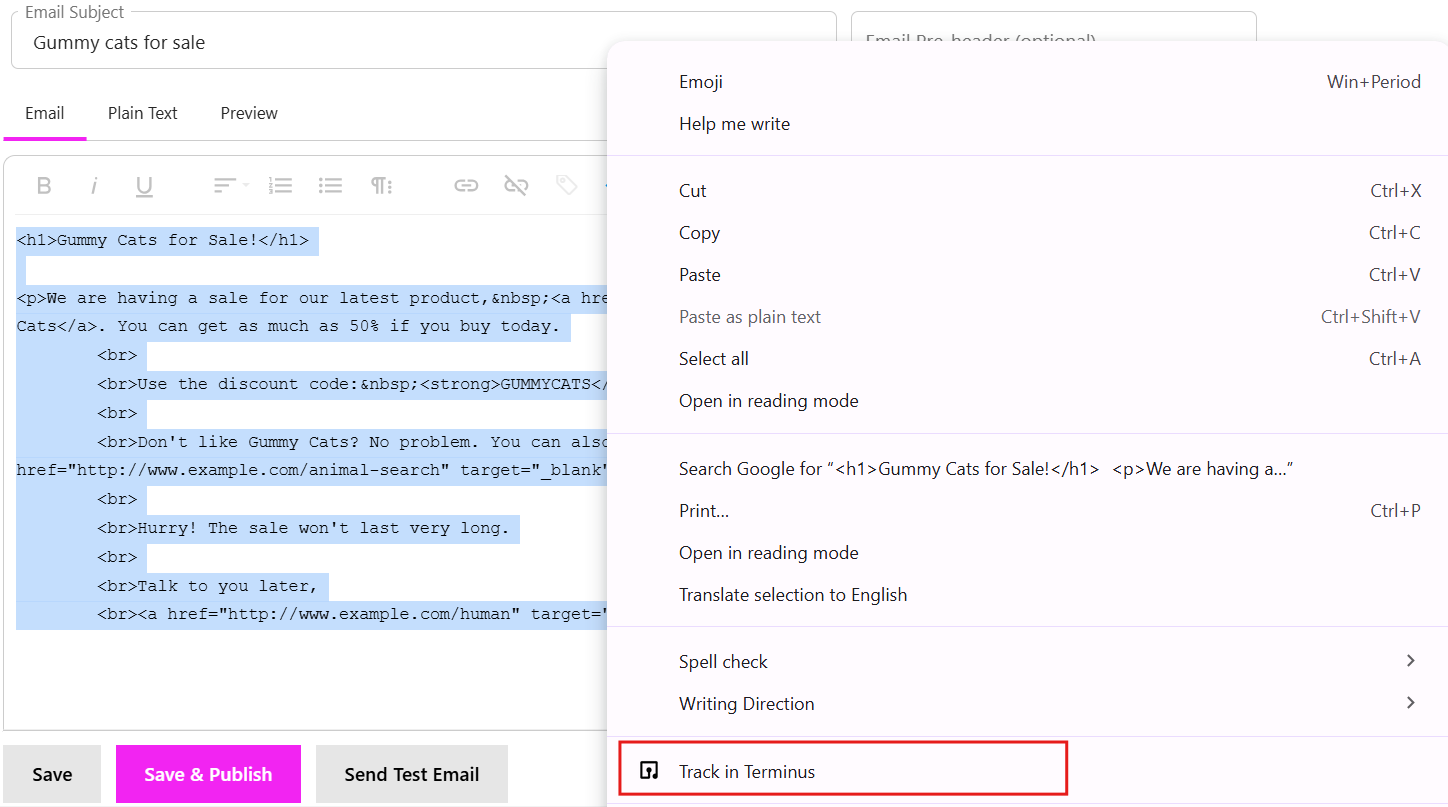
- Select and Track: Select all of the HTML code, right-click, and choose Track in Terminus.
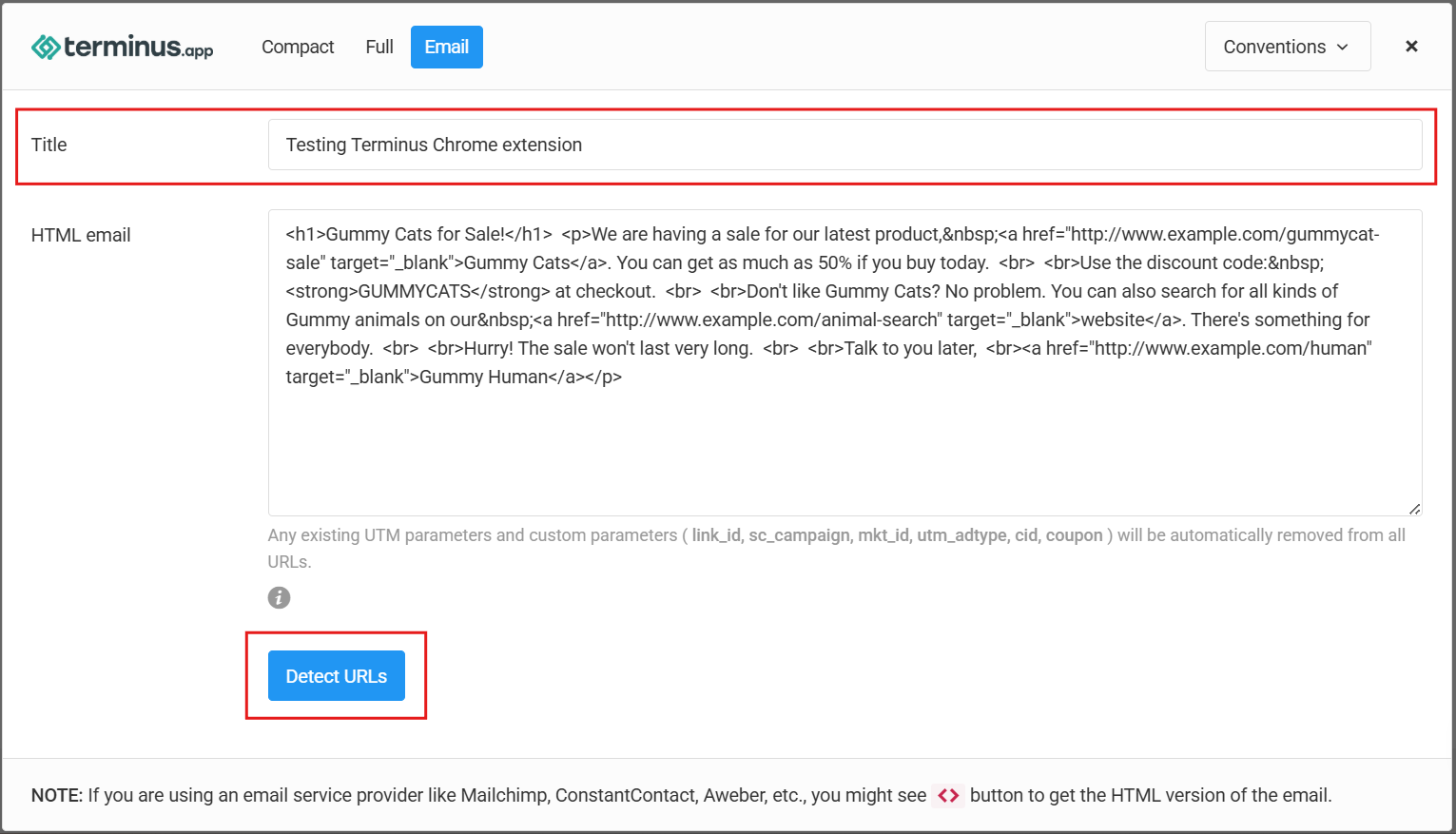
- Detect URLs: A new builder window will open. Update the Title for your email campaign and click the Detect URLs button. The tool will parse the code and list every link it finds.
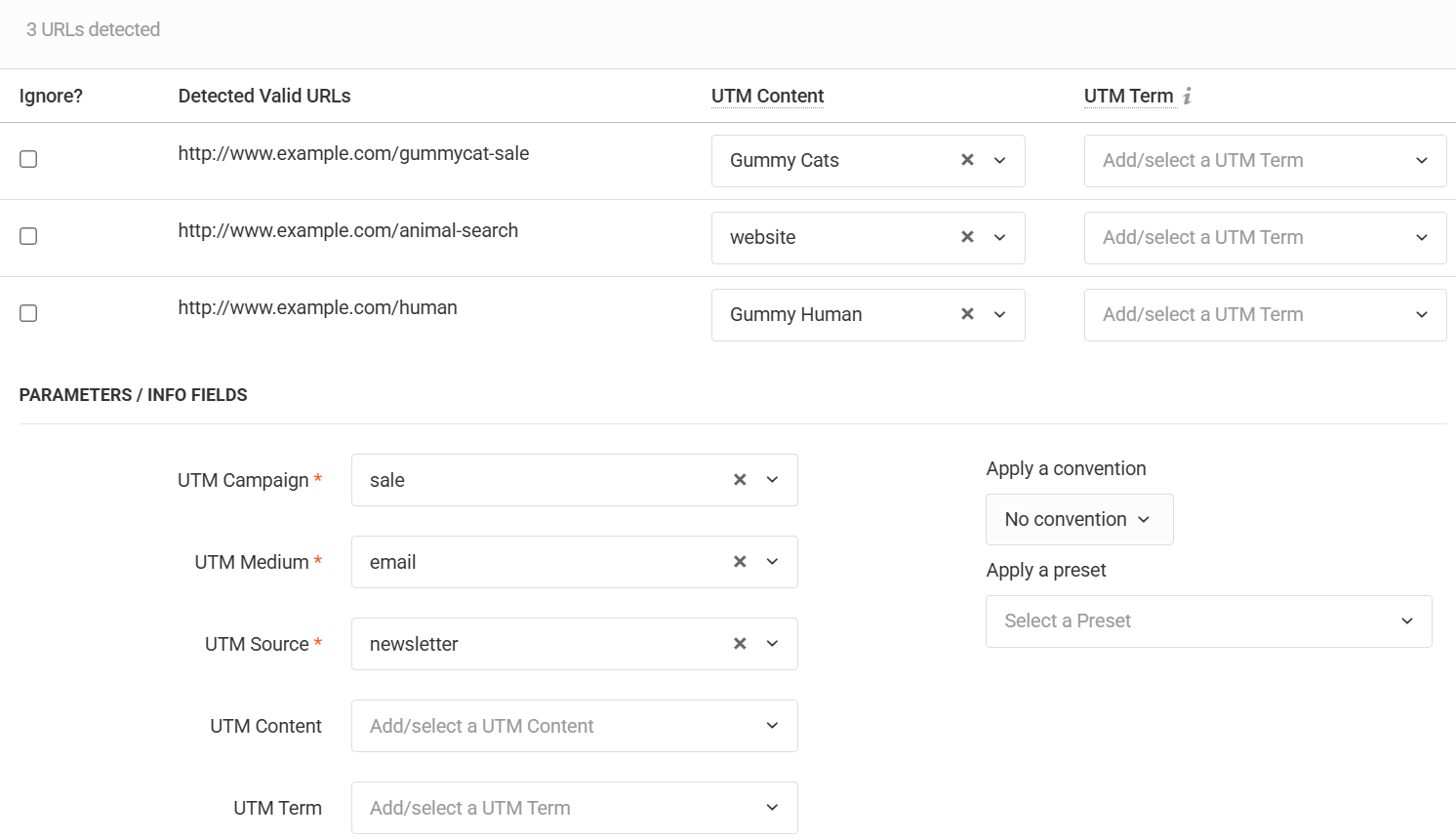
- Apply Tracking: Specify the UTM parameters, presets, or convention you want to apply to all the detected links.
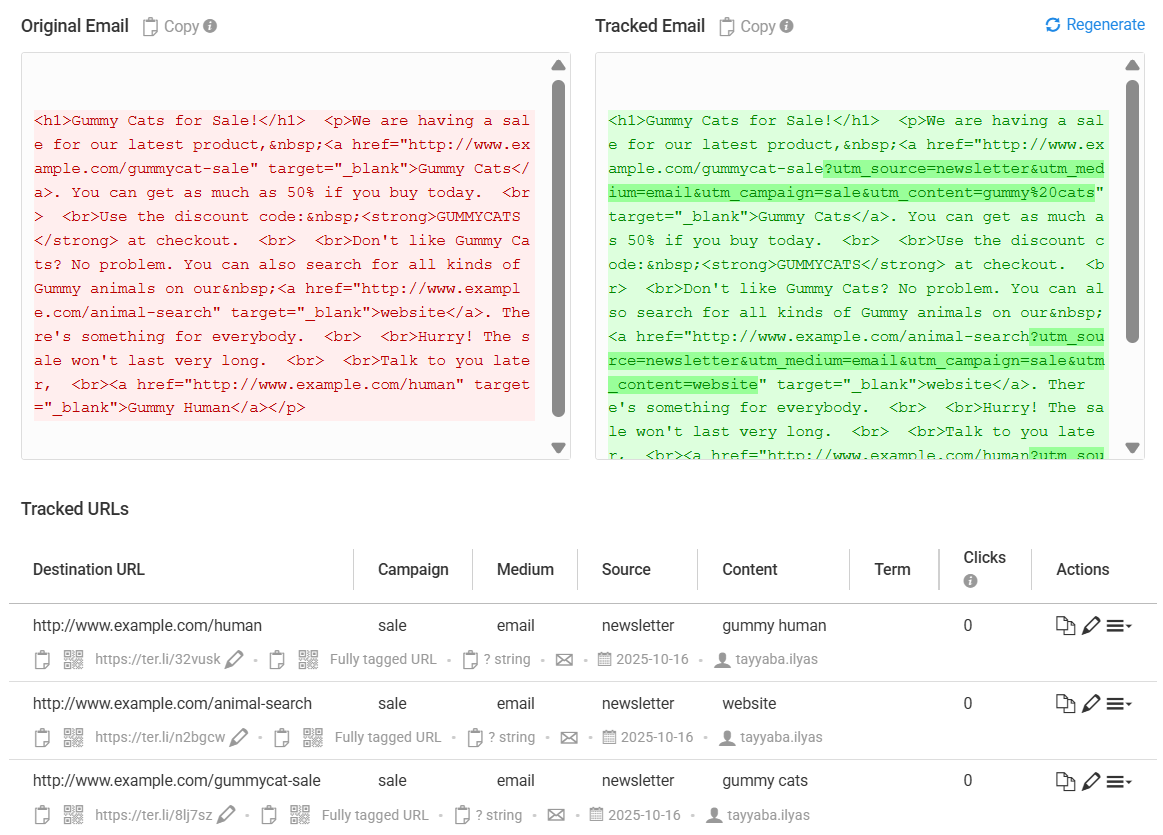
- Generate and Copy: Click Build tracking URLs and Email to generate the new HTML. The tool will replace every original link with its new, fully-tracked version.
- Paste Back into Your Email: Click Copy to grab the updated HTML markup and paste it back into your email provider's source code editor. Your email is now ready to send with every link perfectly tracked.
Best Practices
- Use Conventions for Speed: The extension fully supports your Naming Conventions. Applying a convention is the fastest way to fill out complex parameters with just a few clicks.
- Keep Your Browser Updated: For the best performance and security, always ensure your Chrome browser is updated to the latest version.
The TerminusApp Chrome Extension is an essential tool for any marketer looking to improve their efficiency. By bringing the URL Builder directly to your browser, it eliminates tedious steps and helps you create accurate, consistent tracking links faster than ever before.