
Choosing the Right URL Builder for Your Workflow
The platform offers six distinct ways to build and manage your tracking URLs. While they all result in trackable links, each tool is designed for a specific workflow, from creating a single quick link to importing thousands of URLs for a massive migration.
This guide provides a high-level overview of each method to help you decide which tool best fits your current project.
Quick Decision Matrix
If you are in a rush, use this table to find the right tool for your immediate need.
| If you need to... | Use this Tool |
| Create 1–10 links quickly | Form Mode Builder |
| Create 50+ links with strict data rules | Grid Mode Builder |
| Create links for multiple channels (FB, LinkedIn, Email) at once |
Multi-Tag Builder Note: This is a Legacy builder. For the most advanced workflows, we strongly recommend using the Grid Mode Builder. |
| Tag all links inside an HTML Newsletter | Email Template Tracker |
| Add links that already have tags | Import Existing URLs |
| Upload thousands of links from a spreadsheet | Import via CSV |
1. Form Mode Builder (The "Quick & Simple" Tool)
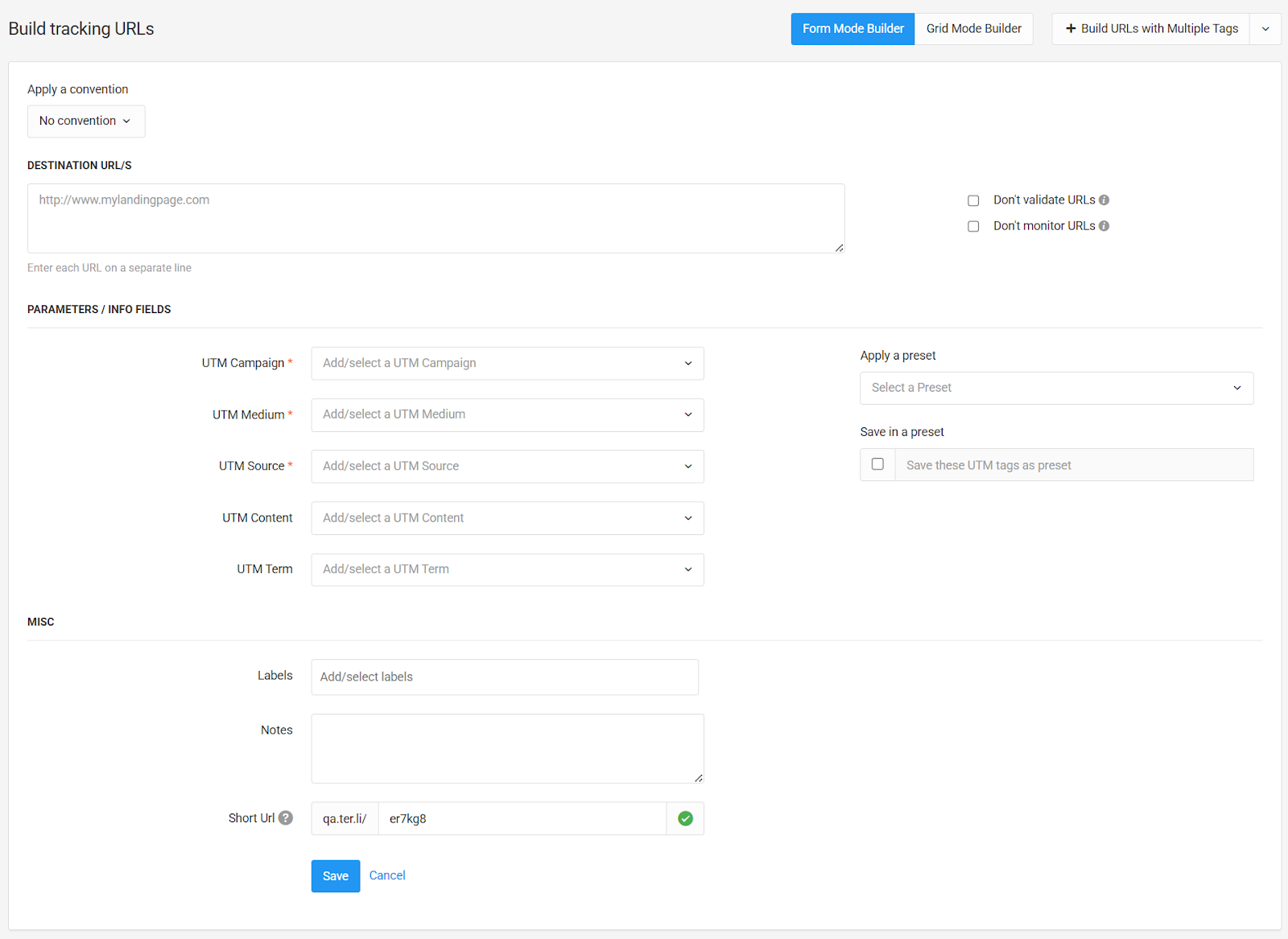
The Form Mode Builder is the default interface you see when you start building. It uses a simple, vertical form layout, making it the most intuitive choice for creating individual tracking links or very small batches (1-10 links).
This method is best when you need to create a quick ad-hoc link for a specific post. It supports Presets to auto-fill your standard parameters instantly, ensuring speed without sacrificing accuracy. You can follow our guide on how to build tracking URLs using the Form Mode Builder to master this workflow, including how to use Presets to auto-fill your parameters instantly.
2. Grid Mode Builder (The "Strict Bulk" Tool)
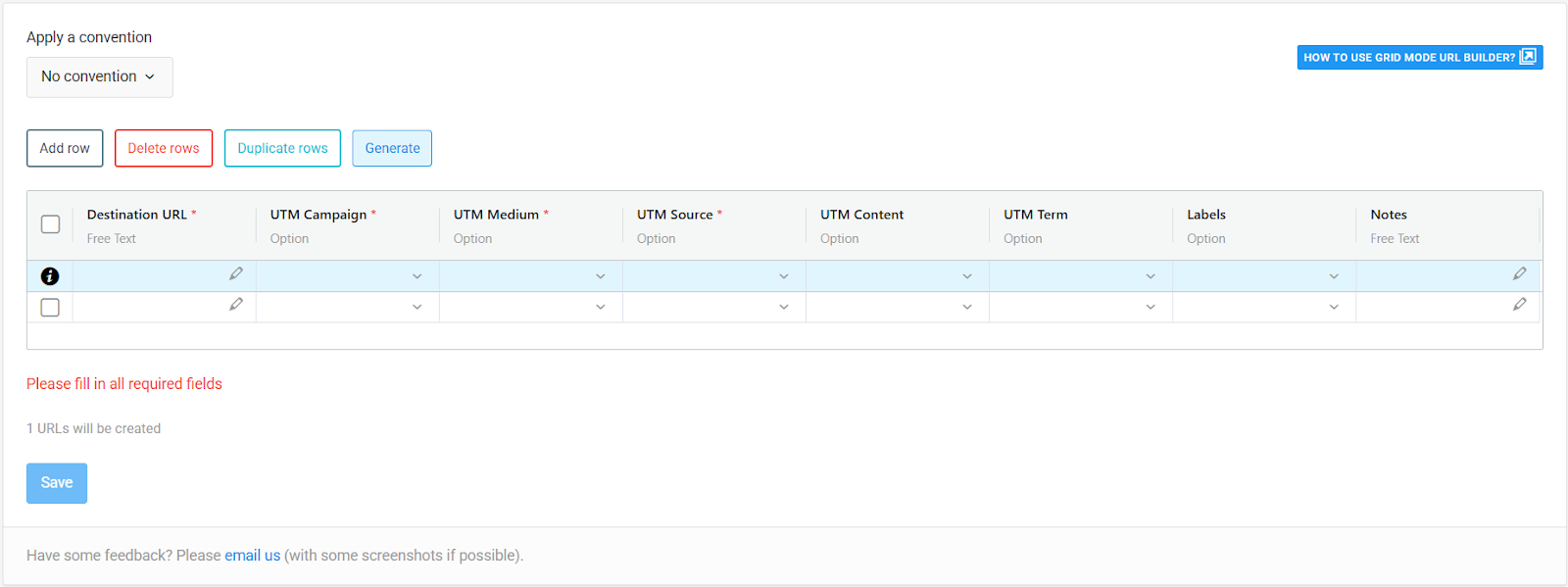
The Grid Mode Builder is the most powerful and robust tool for creating URLs at scale. It offers a familiar spreadsheet-like interface where you can enter data in rows and columns, making it the industry standard for managing large datasets. If you need to build 20 or more links at once while strictly adhering to data governance, the Grid Mode Builder is your best option.
This tool is unique because of its Control Row feature, which allows you to generate every possible combination of parameters (e.g., 3 Sources × 4 Mediums) automatically. It is ideal for large campaigns where every link must strictly follow your project's Conventions. You can learn the specific workflows for using the Grid Mode URL Builder to manage high-volume creation effectively.
3. Multi-Tag Builder (The "Flexible Campaign" Tool)
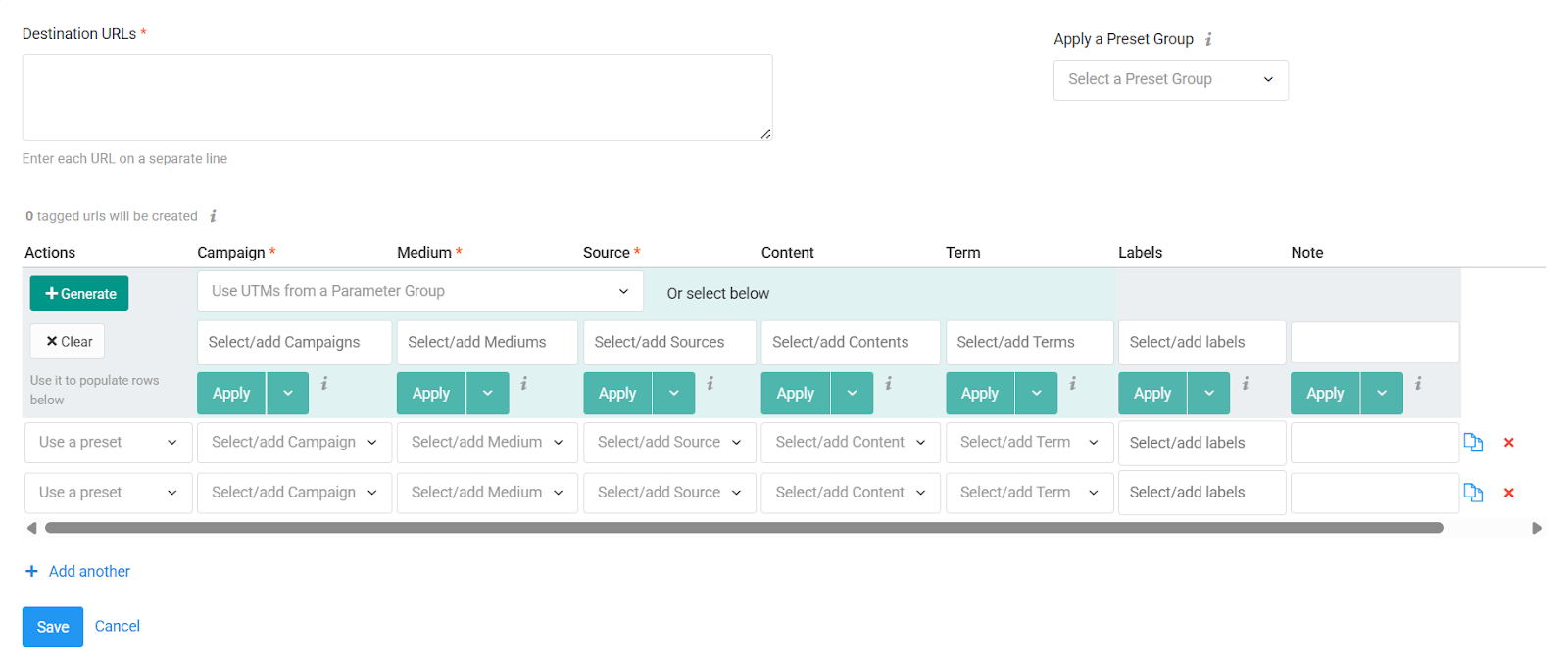
The Multi-Tag Builder is a flexible alternative designed for specific "one-to-many" workflows. It is perfect when you have one destination URL (like a new landing page) and need to generate unique links for it across many different channels (Facebook, LinkedIn, Email, Twitter) simultaneously. While it handles bulk creation, it lacks the strict data governance and advanced features of the Grid Mode.
Note: If your project relies on strict Conventions to keep data clean, we strongly recommend using the Grid Mode Builder instead.
You can use Preset Groups to populate the grid instantly, creating a full campaign structure in a single click. To see how to generate these combinations quickly, read how to use the Multi-Tag builder.
4. Import Existing UTM-Tagged URLs (The "Copy-Paste" Tool)
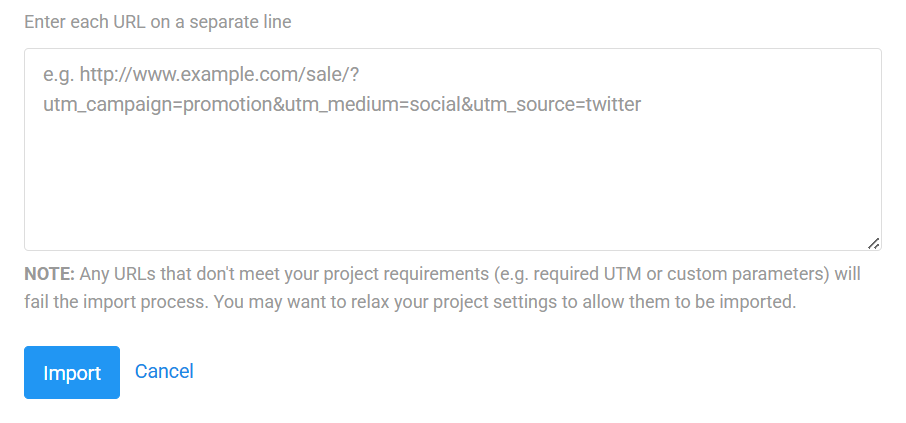
Sometimes you don't need to build new tags; you simply need to bring outside data into the platform. If you have a list of fully tagged links (e.g., from an external spreadsheet or legacy system), you can import existing UTM-tagged URLs directly into the project.
The system will validate the links, automatically clean the data (converting to lowercase and removing spaces), and add them to your project for tracking and analytics.
5. Import URLs Using CSV (The "Mass Migration" Tool)
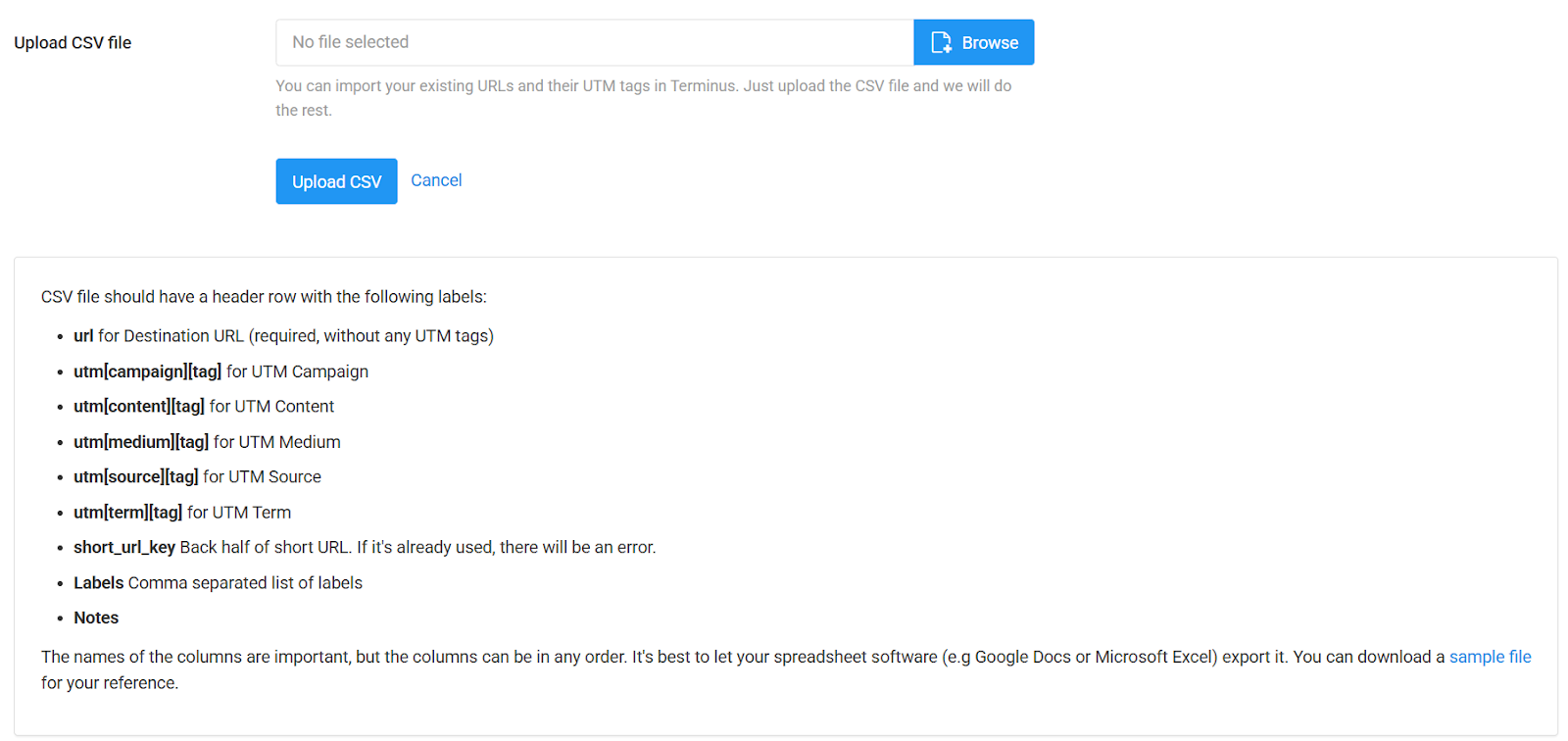
For the most robust bulk creation, use the Import URLs using CSV tool. This method is intended for massive migrations or creating hundreds of links at once using external data.
You can prepare a spreadsheet offline containing your Destination URLs and their corresponding UTM parameters in separate columns. Uploading this file allows for the richest data import possible, supporting custom columns, labels, and notes via CSV headers.
6. Track Links in an Email Template (The "Newsletter" Tool)
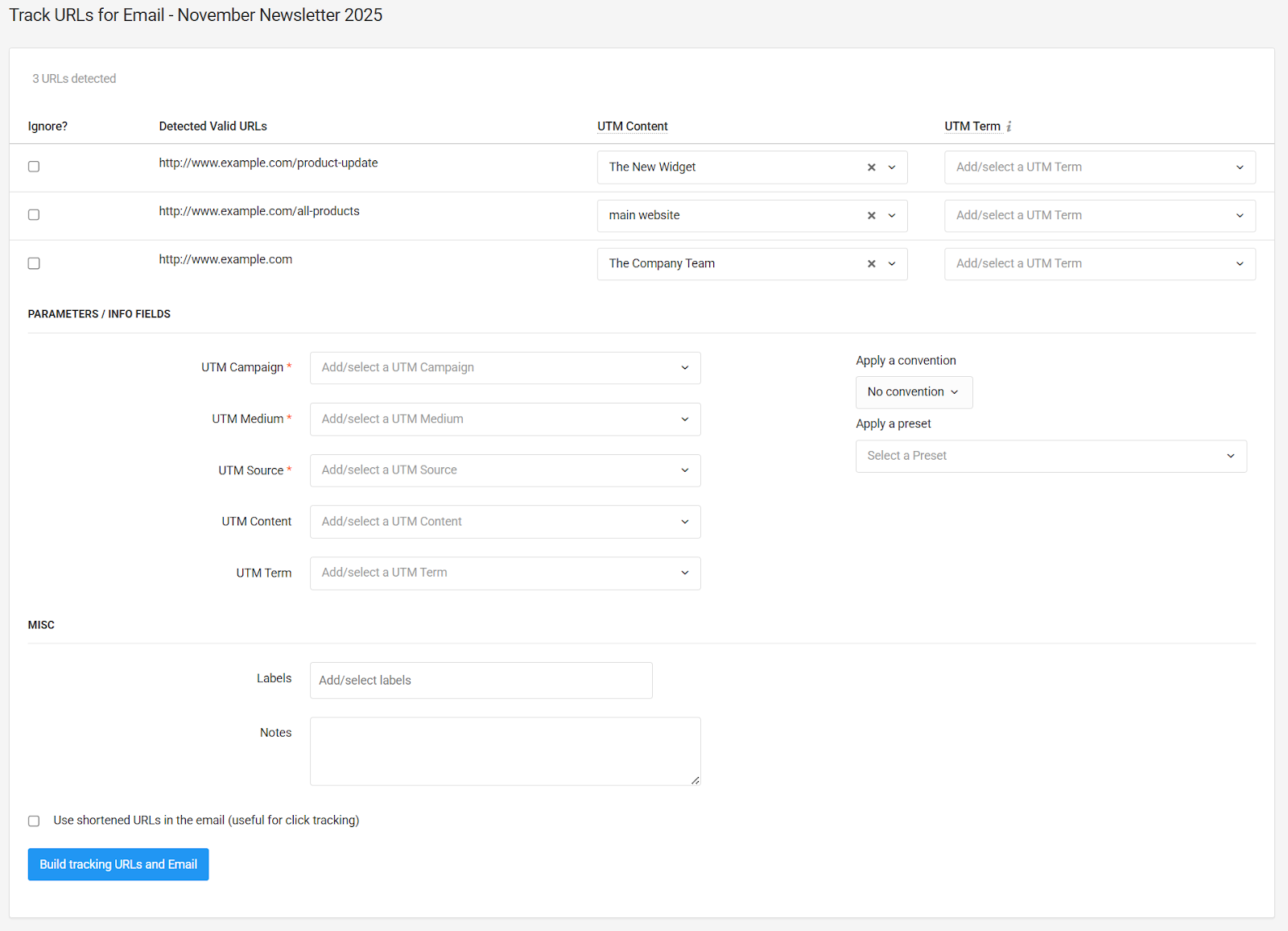
This is a specialized workflow designed specifically for email marketers. Tagging links inside an HTML email manually is prone to errors and broken links.
Use this tool when you are sending a newsletter via Mailchimp, HubSpot, or similar tools. Instead of manual tagging, you can track a new email by pasting your raw HTML code into the builder. It scans the code, detects every link, and allows you to tag them all consistently in one pass. It also automatically strips out any old, messy tracking parameters before giving you the clean HTML back.
Best Practices
Regardless of which tool you choose, keep these principles in mind:
- Consistency: Always use Conventions and Presets to prevent typos (e.g., preventing Facebook and facebook from appearing as two different sources).
- Organization: Use Labels and Notes to categorize your links. This makes it much easier to filter and analyze your data later, regardless of how the link was built.
- Testing: Always test your final links in an incognito window to ensure they redirect correctly.